


Setting up itch for development
itch is built in TypeScript and runs inside of Electron.
To get started, ensure you have a modern version of node.js installed.
Linux distributions may ship outdated node.js versions Use the nodesource binary distributions to get an up-to-date one.
Then, clone the https://github.com/itchio/itch repository somewhere.
Install the javascript dependencies by running the following command from within the itch directory you've just cloned:
$ npm install
For native modules, you'll need a compiler toolchain: Visual Studio 2015 on Windows, gcc/clang on Linux/macOS. See the node-gyp page for more information on this.
Finally, start the app!
$ npm start
Environment
There are three environments in which the app can run: development, test,
and production.
developmentis what you'll be using to develop the app. It includes warnings and tools that aren't in the other environments, such as React warnings.productionis what the app runs on when it's released as a package to end-users. It's a fast, no-nonsense environment, and it enables things like self-updates, locale updates, etc.testlooks a lot likeproductionexcept that some things are disabled: logging, for instance, is suppressed. The app will also not exit by itself, but print a well-known string to the console, allowing the integration test runner to kill the app itself.
App structure
The main process is the first process when itch is started. It's basically a node.js runtime.
In main, we:
- Read preferences from disk
- Set up proxy settings
- Set up the
itch://protocol - Install/update components like
butleranditch-setupif needed - Create the tray icon
- Create native windows
- Maintain the canonical version of the app state.
Each native window conceptually has its own renderer process, which is basically a Chromium process (but with node.js integration).
(In reality, they're separate execution contexts that all live in the same process). In the renderer process, we:
- Render all the app's UI
- Including webviews
- Make remote procedure calls to the butler daemon to fetch data
- etc.
All processes have a redux store, the main store is the reference, and the other stores are synchronized by sending inter-process messages, which is done transparently by redux-electron-store.
Chrome Developer Tools (renderer)
Press Shift + F12 to open the Chrome Developer Tools, to inspect the DOM, run arbitrary javascript code in the chrome side of the app, etc.
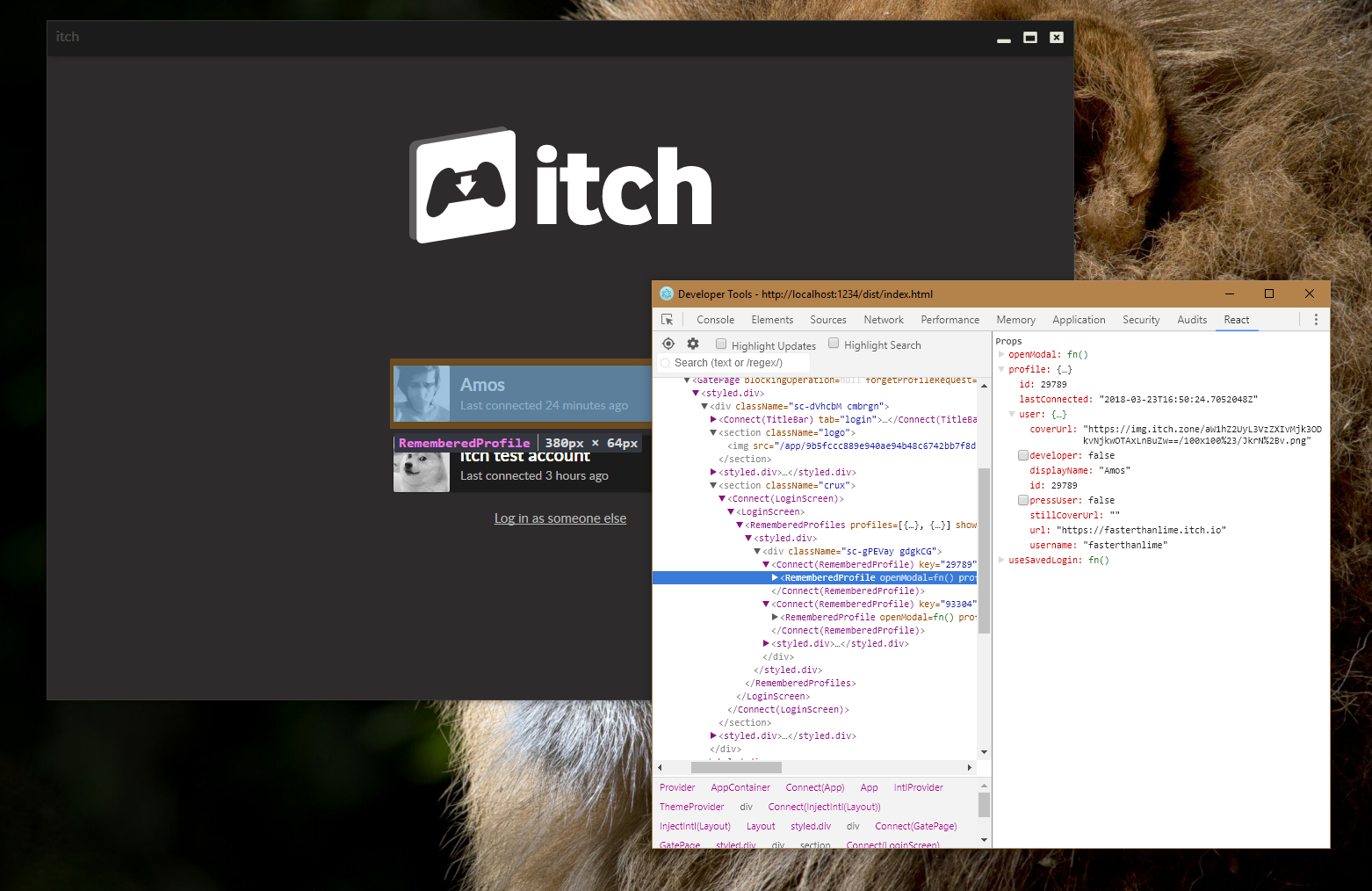
If the app crashes before it gets a chance to install the keyboard shortcut,
you can export DEVTOOLS=1 before starting the app so that they open as early as possible.
See Environment variables for a list of useful ones.
Chrome Developer Tools (main)
In development, the app serves a debugging interface on port 9222.
If you open a chrome://inspect tab in Google Chrome, it should show up under Remote Target (#LOCALHOST). (If it doesn't, you can add it manually).
You can use those to step through code in the main process. This is particularly useful if an exception is thrown, but you don't know exactly why.
This works on release builds too:
- Launch itch with
itch --inspect-brk=9222 - Open
chrome://inspectas a tab in Google Chrome - Check the "Pause on exceptions" button (top right)
- Evaluate
global.require = requireif you're planning on requiring stuff- Note: modules that are bundled by webpack can't be required this way
- Note: the store is assigned to
global.ReduxStore, so you can easilygetState()ordispatch()
- Resume execution
Note that pausing in the developer tools will freeze the whole app, so your OS might complain it's unresponsive.
Compiling
TypeScript sources and static assets live in src. They're compiled and
bundled by esbuild.
In development, files are recompiled automatically, you can refresh the user
interface of the app to view the latest UI. Since the redux state is unchanged
on refresh you should be left off where you were. The easiest way to refresh
the UI is the open the Devtools (Shift + F12) and hit Ctrl + r with the
devtools focused.
Code style
We use prettier to make sure the codebase has a consistent style.
There's a pre-commit hook that formats staged files. It's powered by husky and
lint-staged, see the package.json
for the configuration.
Some text editors have plug-ins for prettier, which can help you format on save. There are workspace settings for the Visual Studio Code prettier plug-in in the repository.
React components
React components are TypeScript classes that extend React.PureComponent. All components are pure components, never extend React.Component instead.
We have a hook function that allows writing fully type-checked connected components (it uses redux's connect under the hood).
Look at src/renderer/basics/ for simple examples.
Note: We are in the proces of migrating to React Hooks and Functional Components. Use
React.memowhere possible.
Styled components (CSS)
Most of the CSS styles in the app are handled by styled-components.
This lets us handle theme switching, namespace and compose our styles easily.
Some text editor plug-ins, like styled-components for Visual Studio Code provide syntax highlighting for css blocks.
Testing
We check the quality of the app's code by two kinds of tests:
- Unit Tests, which test the code
- Integration Tests, which test interactions
Check out the pages linked above to learn more about what their purpose is, when and how they're run, and how they're written.